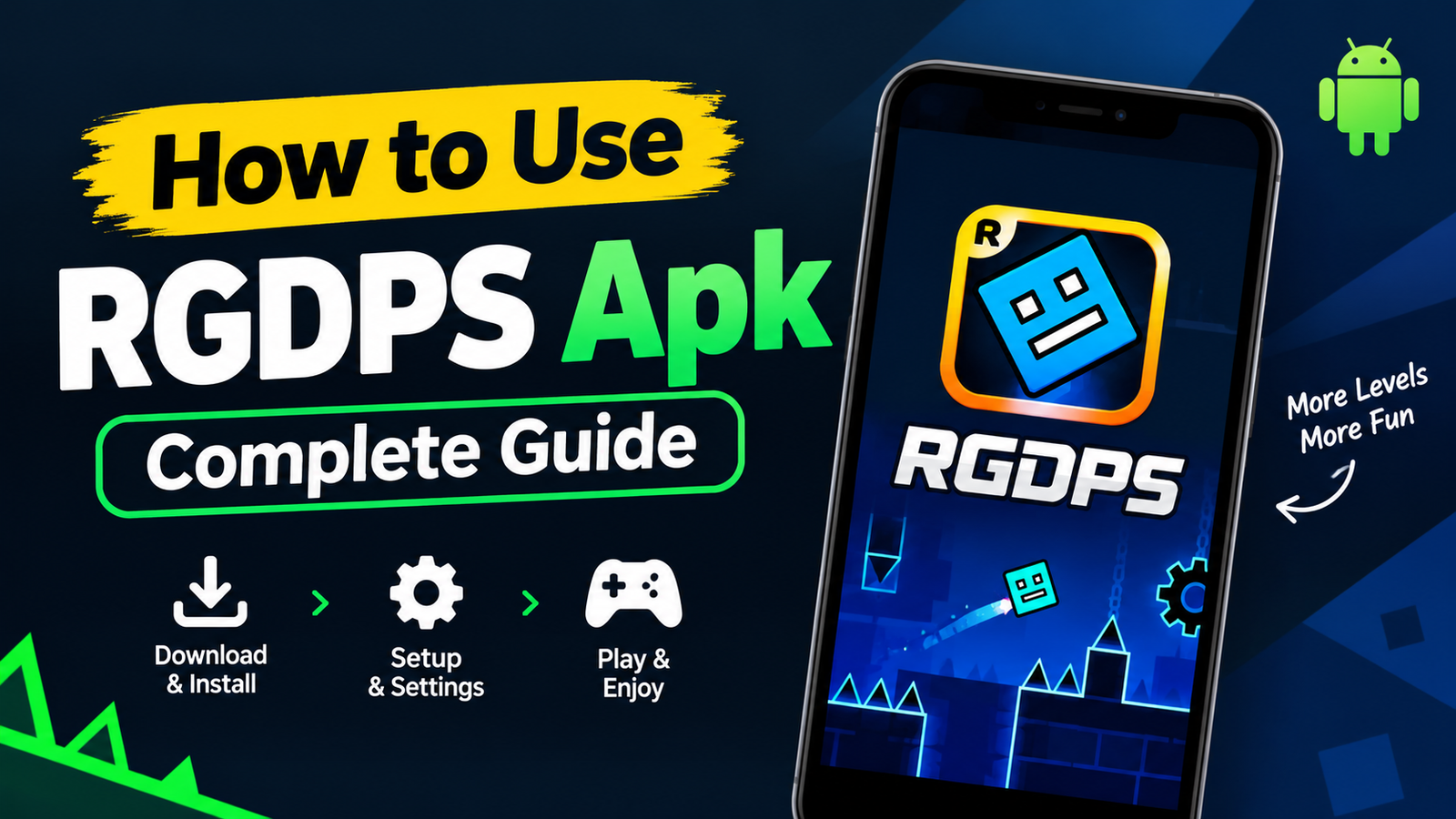
How to Use RGDPS Complete Beginner’s Guide
How to Use RGDPS APK
You installed the RGDPS APK and the icon is on your screen. Now what? Many players open it, see a login screen and get stuck. This guide covers everything after the install, from your first account to uploading your first level. If you have not installed it yet, get the file from rgdps.app first.
The steps below match RGDPS v2.2.144, which is built on Geometry Dash 2.2. Follow them in order the first time. After that, you can jump to any section you need.
What You Need Before You Start
You need an Android phone with version 5.0 or higher, a few hundred MB of free space and an internet connection. The connection matters because your account, levels and rankings all live on the RGDPS server.
Here is a detail many guides get wrong. You do not open the official Geometry Dash game and then start RGDPS on top of it. The RGDPS APK is the full game with a different server address. You simply open it like any other app.
How to Create Your RGDPS Account
Your RGDPS account is separate from your official Geometry Dash account. Even if you use the same username, the two do not connect. Follow these steps to register.
1. Open RGDPS from your home screen and wait for the loading bar to finish.
2. On the main menu, tap the account button.
3. Choose Register.
4. Type a username, a password and your email.
5. Confirm the details and wait for the success message.
6. Go back to the account menu and log in with the same details.
Use a password you do not use anywhere else. Private servers are run by fan teams, so treat this password as new and separate.
How to Find and Play Levels on RGDPS
Use Search and Filters
Tap the search button on the main menu. You can filter levels by difficulty, length and rating, and sort them by most downloaded or most liked. This is the fastest way to find good levels, because the list is different from the official one.
Play a Level by ID
If a friend gives you a level ID, type the number into the search box and open it. Sharing IDs is the most common way players pass levels around in groups.
Use Practice Mode
Hard levels are easier when you learn them in pieces. Practice mode lets you place checkpoints, so you can repeat a difficult section without starting over. Once you can clear each part, try a full run.
How to Customize Icons and Colors
Open the Garage from the main menu. Pick a category such as cube, ship, ball, UFO, wave, robot or spider. Then choose the first color, the second color and the glow color. Depending on how the server is set up, many icons are already open, so you can try them right away.
Testing your look before you record or share a level is a nice habit. Some creators pick icons that match the mood of their level.
How to Build and Upload Your First Level
The editor is where RGDPS becomes really fun. Start small. A short and clean level gets more plays than a long and messy one.
1. Tap Create on the main menu and choose a new level.
2. Open the level settings and set the name, song and starting options.
3. Use the Build tab to place ground, blocks and spikes. Add decoration later.
4. Tap the playtest button after every small change, not only at the end.
5. Save and exit when you are happy with the layout.
6. Open My Levels, select your level and tap the upload or share button.
7. Add a short description, wait for the success message and note your level ID.
8. Send the ID to friends so they can play it.
For music, pick a song from the list. If the server supports it, you can also use a song ID.
How to Back Up Your RGDPS Data
The account menu has Save and Load options. Save sends your progress to the RGDPS server. Load brings it back on the same account. Do this before you change phones or delete the app.
When a new version comes out, install the new APK over the old one. Do not uninstall first, because that can remove local data. If you want to be extra safe, press Save before you update.
Fixing Common Problems While Using RGDPS
Login Failed
Check your username and password for typing errors. Remember that RGDPS accounts are separate from official accounts. If the details are right, wait a few minutes and try again, because the server may be busy.
Levels Do Not Load
Switch between WiFi and mobile data. A weak connection is the most common cause. If the problem stays, close the app fully and open it again.
Lag or Crashes
Turn on low detail mode in the game settings and close other apps. If the game still crashes when you open it, clear the app cache in your phone settings or install the latest version from our site.
Safety Tips for Using RGDPS
RGDPS is a fan project and is not linked to RobTop Games. Download the APK only from the official site, never use your official Geometry Dash password and keep your original game installed. Modified apps are not approved by Google, so a little care goes a long way. Using an iPhone? Read our RGDPS iOS for the sideloading steps.
Conclusion
Using RGDPS is simple once you know the order. Install the APK, create a fresh account, explore the level search, customize your icon and then build something of your own. Back up your data now and then and update the app when a new version arrives.
Start with easy levels, learn the editor slowly and ask other players for feedback. If you like Geometry Dash, buy the official game too. For more guides and the latest download, visit rgdps.app.
One Comment